
How To Install WordPress Themes
What you’ll learn on this page
Choosing and adding a theme is one of the final steps in setting up your new WordPress site. The great thing is, once your theme is installed, you are ready to create your website. In this tutorial, you’ll learn how to install and activate themes on your WordPress website, including the default themes that come pre-installed with WordPress.
For the most part, installing a new WordPress theme is generally pretty straight-forward, no matter which method you choose, and there are several! You can install a WordPress theme from the official themes directory or from third-party developers. We’ll also review keeping your theme updated, changing an existing theme, and how to add your theme’s templates to your site’s pages. These steps also apply to sites built with EasyWP, our optimized Hosting for WordPress service.
WordPress themes play a critical role in your site. They create the look and feel of your entire site in just a few clicks, with no coding required. You can find free themes in the WordPress directory or install premium themes from third-party sites. Many free themes are ideal for those who want to tinker with their code, but paid themes offer extra support and more features for a website tailor-made to your needs. A free theme can be a good starting point for beginners, though they may have limitations such as lack of uniqueness and support.
Finding the right theme
Finding the right WordPress theme can be a daunting task, especially with the numerous options available. However, there are certain factors to consider when selecting a theme that meets your needs.
For the most part, installing a new WordPress theme is generally pretty straight-forward, no matter which method you choose, and there are several! You can install a WordPress theme from the official themes directory or from third-party developers. We’ll also review keeping your theme updated, changing an existing theme, and how to add your theme’s templates to your site’s pages. These steps also apply to sites built with EasyWP, our optimized Hosting for WordPress service.
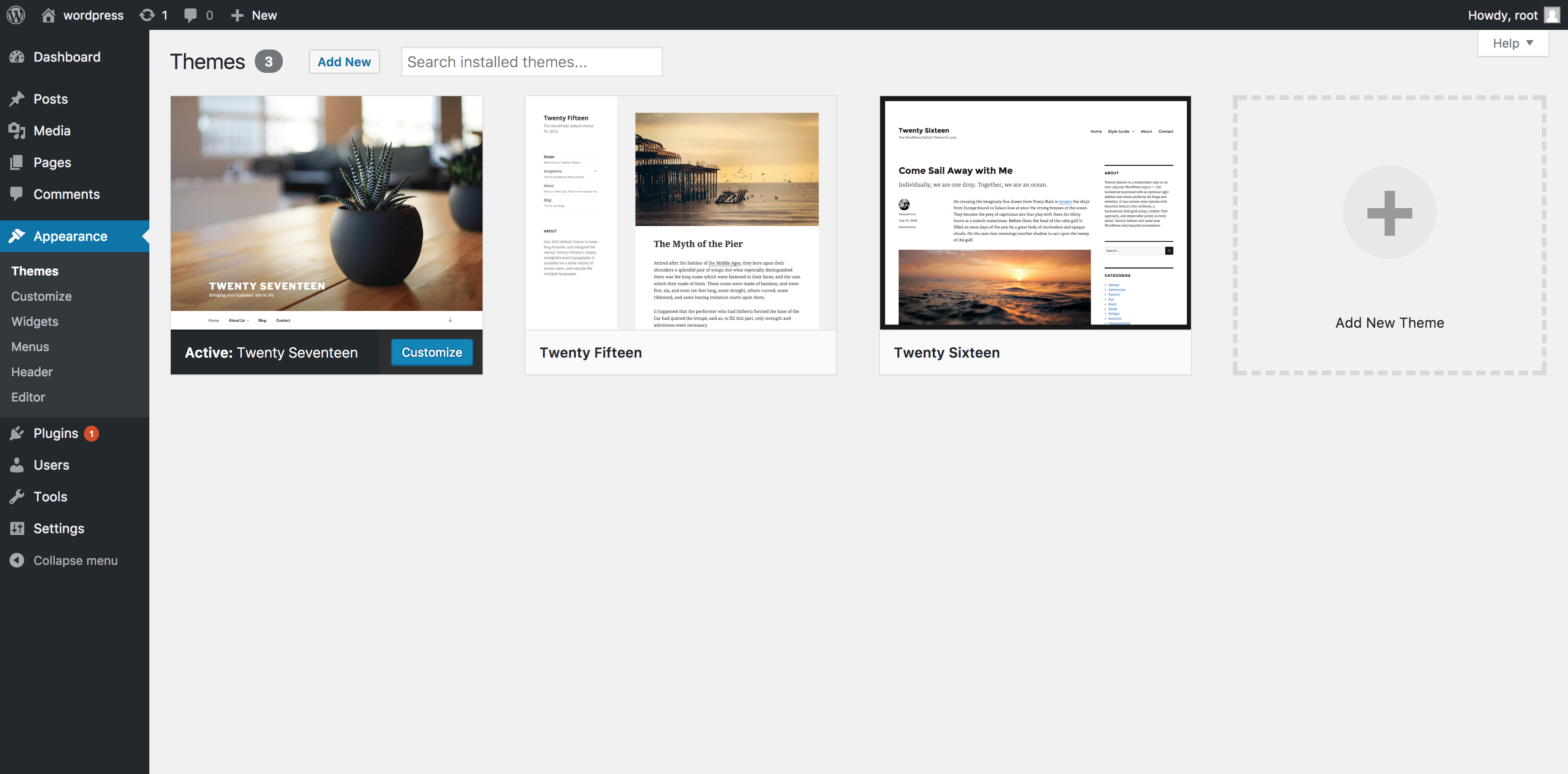
Use the theme search bar if you know the name or style of theme you want. The Feature Filter in the theme search function will narrow down the results. You can select your preferred layout format, which features you need, and the subject of your site. You might be looking for a single-column layout for a photography blog that features an animated background, for example.
You might want to browse for inspiration using the tabs for Featured Themes, Most Popular Themes and the Latest Additions to the directory. For more options, use the theme search to browse commercially supported GPL themes. These paid services include more support and are fully compliant with the WordPress General Public License.
Where to find WordPress themes (free and paid)
The biggest challenge you’ll face with themes isn’t installing it, it’s choosing the right one for your needs. To install a free WordPress theme, you can access the WordPress Theme Directory through your WordPress dashboard, browse the available themes, and follow the step-by-step guide to install and activate your chosen theme.
There are tens of thousands available, premium, and free, and an abundance of impressive designs. Free WordPress themes can be a viable option for beginners or those with a limited budget, though they may lack some features found in premium themes. If you don’t have a theme already, let’s take a look at where you can find one.
Choose a theme from the Official WordPress theme directory (free)
If you haven’t chosen a theme yet, head over to the WordPress theme directory. It holds official WordPress themes that have been checked and inspected against WordPress theme guidelines. They are also free to download. There are thousands of themes in the directory; this is where the WordPress theme search function comes in handy.
Use the theme search bar if you know the name or style of the theme you want. The Feature Filter in the theme search function will narrow down the results. You can select your preferred layout format, which features you need, and the subject of your site. You might be looking for a single-column layout for a photography blog that features an animated background, for example.
You might want to browse for inspiration using the tabs for Featured Themes, Most Popular Themes, and the Latest Additions to the directory. For more options, use the theme search to browse commercially supported GPL themes. These paid services include more support and are fully compliant with the WordPress General Public License.
Paid theme from a theme marketplace
We mentioned that it’s possible to take a premium or third-party theme. Premium themes are popular because they come with benefits rarely found in free versions. For instance, you can expect extra support, more frequent updates, and extra features. WordPress users can find premium themes in marketplaces such as Themeforest, Css Igniter, and StudioPress. Any theme listed outside of the WordPress.org directory, whether free, or paid must be downloaded, and we’ll cover how you can do that.
WordPress theme install
Before you can vamp up your site with themes, you need to install and activate them. There are several ways to do that. The simplest way is right from within WordPress admin.
Install a theme from WordPress dashboard
These are the basic steps for most themes:
- Log in to your WordPress admin page, then go to Appearance and select Themes.
- To add a theme, click Add New. From this page, you have two ways to add a new theme. If you know the name of the theme you want, search for it in the Theme directory. If you don’t know your preferred theme’s name, use the Feature Filter to hone down your selection, check any tags and click Apply Filter for a screen filled with themes that meet your search criteria.
- To unlock a theme's options, hover over it; you can either choose Preview to see a demo of the theme or install it by clicking the Install button once you're ready. Once installed, click the Activate link.
- You're all done, now preview your site to see how it looks.
We recommend reading through any instructions that come with your chosen theme regarding installation. Some themes will require more steps than others, going beyond the basic steps covered here. Follow the instructions provided, and if you run into any problems, contact the theme’s author for help.
Download WordPress themes
If you purchased a theme from a developer that operates outside of the WordPress themes directory, you need to upload it before installing. Follow these simple instructions to upload and install a theme.
Begin by downloading the theme’s .zip file from the source onto your local computer.
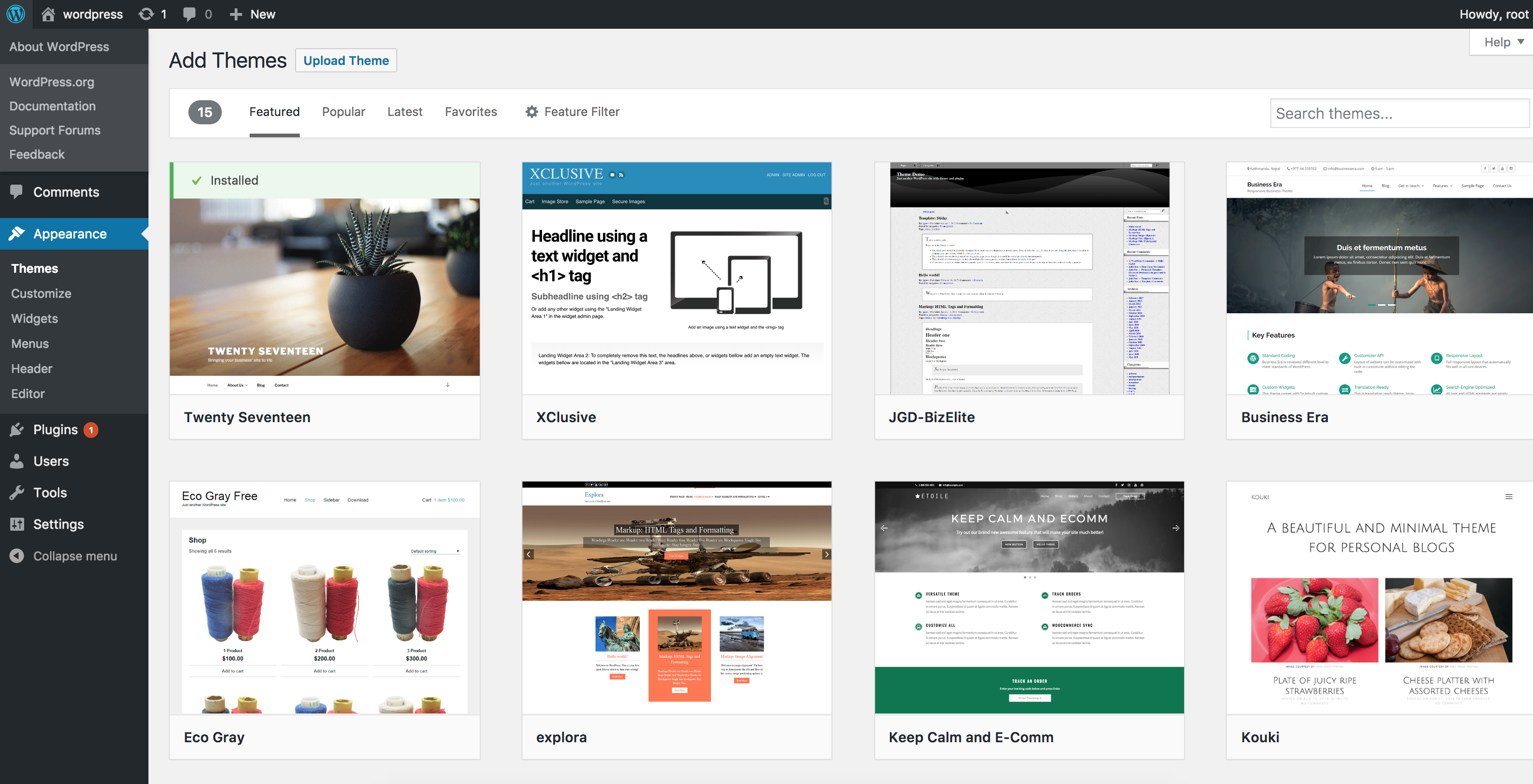
From your WordPress Administration area, head to Appearance > Themes and click Add New.
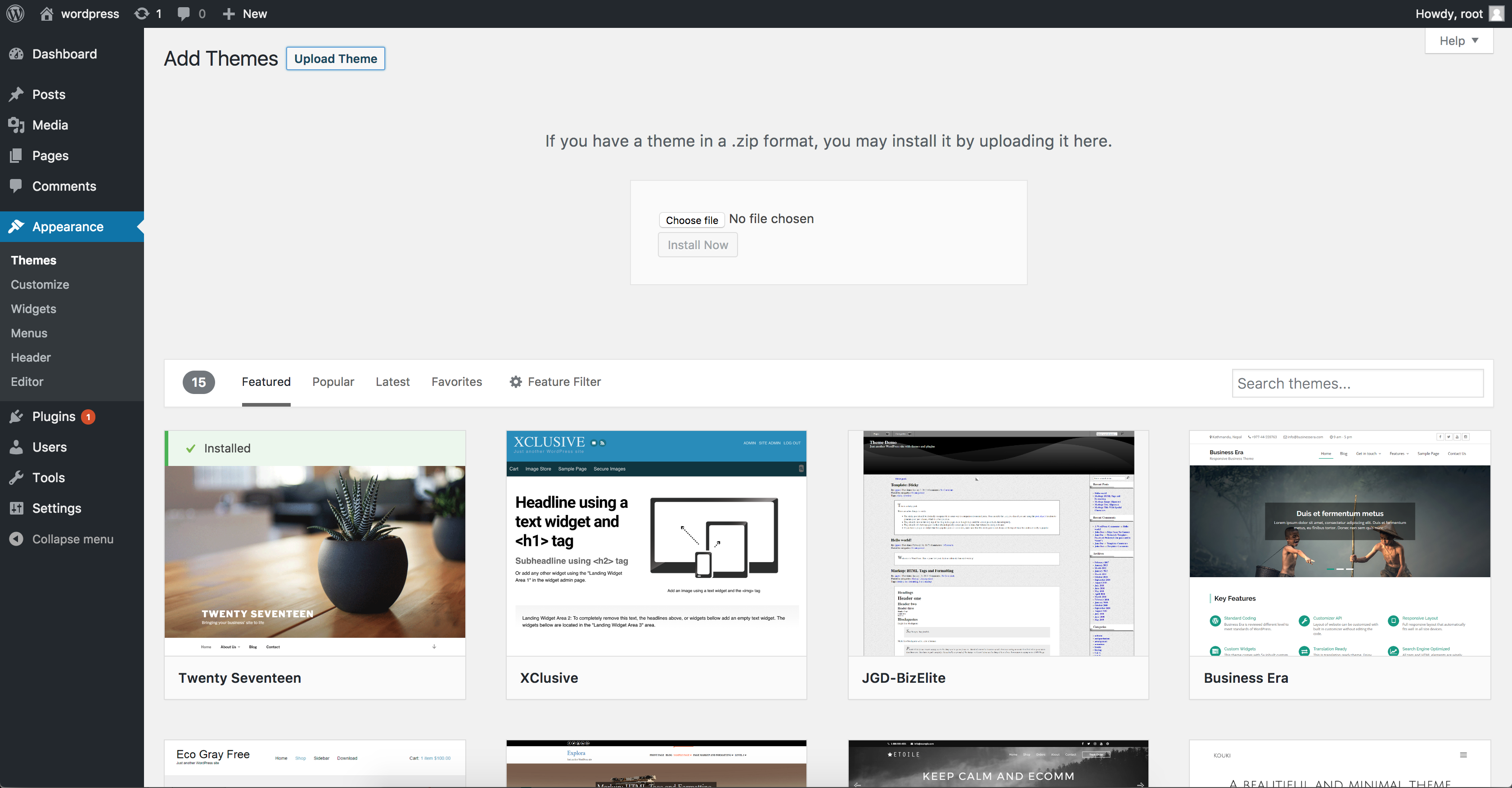
The Add New theme screen has a new option, Upload Theme.
The theme upload form is now open, click Choose File, select the theme zip file on your computer and click Install Now.
Once the theme is downloaded from the zip file, you can activate it from your admin. Select the Appearance tab and open the Themes directory, locate the theme and click the Activate link.
How to install WordPress themes using FTP
If you have a WordPress theme on your local computer, it’s possible to install it using File Transfer Protocol (FTP). By using this method there is a risk of deleting or modifying files, which could bring your site offline. For this reason, we advise that only advanced users install themes this way. To use the FTP to add new themes manually, follow these steps.
To begin, you must have an FTP hostname, username and password, and an FTP client. We’ve used FTP client Filezilla to show the steps in this tutorial.
Launch Filezilla, enter your login details and click Quickconnect.
The following window contains Remote Site and a root directory (the root directory is your site's name). Select /rootdirectory/web/content/wp-content/themes.
In the Local Site window, select the folder containing your saved theme, right click for more options and hit Upload.
You've now successfully uploaded your theme to WordPress. To finalize, log in to your control panel, head to Appearance > Themes and hover your mouse over the new theme. Now click Activate.
All that’s left is to check out your new theme and see how you like your new site design.
Finally, if you’re a fan of doing things yourself, it’s possible to bypass the WordPress theme uploader tools and download your theme manually. Installing a theme manually takes a few extra steps. It involves uploading your theme directly to your server via your host’s cPanel.
Setting up your new theme
Once you’ve installed your new theme, it’s time to set it up and customize it to your liking. This process involves activating the theme and configuring its settings to match your website’s needs.
Activating your chosen theme
To activate your chosen theme, follow these steps:
Log in to your WordPress dashboard – Start by logging in to your WordPress dashboard.
Navigate to themes – Go to Appearance > Themes.
Activate the theme – Find your newly installed theme and click on the “Activate” button next to it.
Customize theme settings – After activating the theme, navigate to Appearance > Customize to access the theme settings. Here, you can adjust various options such as colors, fonts, layout, and more to ensure the theme aligns with your website’s branding and functionality.
By following these steps, you can activate and customize your new theme, ensuring it provides a smooth and engaging user experience for your visitors.
Apply a template to individual pages
Now that your theme is installed and activated you can start setting it up according to the needs of your website. The next step is to begin applying templates in the theme to pages. This can be handled simply via the WordPress Page Editor by following these instructions:
Open the WordPress Page Editor. If your page has applicable templates, you'll find them listed in the Page Attributes box to the right of your content.
Select a template, and click Preview to decide if the template suits your page before saving.
Once you’re happy with the page template, click Publish.
Safely changing WordPress themes
It’s fairly easy for new site owners to change their WordPress themes, you need only select a theme and install it. If you have an established WordPress site, changing the appearance of your entire website is a major step. We highly recommend backing up your site before doing so.
Changing themes can be intimidating, but that shouldn’t stop you embracing a new look for your website. Once you’ve made a backup, followthese guidelinesto prepare for changing themes.
Keep themes updated
A final note on themes is to keep them updated. It takes a small amount of effort to update the core WordPress themes. Updating themes is worthwhile, each update adds new features and enhancements, such as better security and SEO.
You may cause some problems for your website by keeping themes up to date. Customized pages can be affected, and settings lost during an update, for example. To counter this, we recommend child themes. These facilitate a successful theme update without losing any of your modifications. Follow this guide to check if your theme is safe to update with child themes.
FAQs about installing WordPress themes
Why can’t I add a new theme to WordPress?
If you’re having trouble adding a new theme, chances are, you have installed the theme, or you’ve installed the theme but you haven’t activated it yet. Once your theme is installed, just click the Activate link to apply the theme to your website.
How to uninstall a WordPress theme?
That’s easy. You just need to head to themes, select the one you want to remove, and click delete in the popup that appears. Next, you‘ll be asked to confirm you want to delete the theme. Select the OK button to confirm and WordPress will delete the selected theme. You can’t uninstall an active theme, so make sure you’ve deactivated it first.
Can I create a WordPress theme?
A custom WordPress theme is a great investment in any website. A unique site will help you stand out from the competition. Since you’re not stuck with the features a theme gives you, you’ll find customization easier when you create a theme yourself. However, some experience with programming is necessary.
A WordPress theme is made up of a set of template files written in PHP, CSS, HTML, and Javascript. If you have a good understanding of these languages, you can create a custom theme, alternatively, it’s possible to hire a web developer to build one for you.
What is a child theme in WordPress?
A child theme is a WordPress theme that inherits functionality and styling from a theme called the parent theme. Child themes are often used to modify an existing theme while maintaining the code and design. Using a child theme is the safest way to modify a WordPress theme, without altering the parent theme’s files.
Which theme is best for my WordPress site?
If you’re wondering how to choose a WordPress theme for your website, assess first what the site is for and your requirements. It depends on factors like the site’s goals, your skill level, and your budget. Find more information on how to choose the right theme.
The theme you choose depends on the type of site you plan to build.
What is the fastest WordPress theme?
Themes play a pivotal role in the speed your pages load. A slow-loading theme will slow down your website and impact your page rank. To avoid this happening, you should always choose a theme optimized for speed. There are many available, the fastest at time of writing are GeneratePress that loads in 1.1 seconds and Astra who consistently tops the theme speed charts boasting 0.9 second load time.
What WordPress theme is that? How can I use it?
If you’ve landed on a site and you’re wondering, “what WordPress theme is this” you can find out and add it to your site. With ScanWP, you simply enter the domain of a WordPress site. After a quick scan, it reveals the theme. If you’re unsure of whether a site is running WordPress, you can check that using a WordPress theme detector. Enter the domain name in the search feature to find out which CMS build it was built with.
Why doesn’t my theme look like the demo?
When you preview a theme’s demo, you see pages made by the developer. When you install the theme, it doesn’t include the example content, so it’s going to look underwhelming compared to the demo site. The demo is designed to show the full potential of the theme, once you’ve customized it with your content and images.
You may also like

Hosting for WordPress
Start for free today*
Simplicity is freedom! Using EasyWP to set up and manage your site lets you get back to the rest of your business.
*30 days of Free trial. Renews automatically until canceled.
Get Hosting for WordPressUnderstanding WordPress Themes
An in-depth look at what WordPress themes are and how they work.
Best WordPress themes for business
Look professional in minutes with this selection of WordPress themes picked by our resident experts.
Best premium WordPress themes
We help you get your money's worth when you buy a WordPress theme.
WordPress tutorial
This plain English guide to WordPress shows how easy it can be to create and manage a website.
How to install WordPress
A review of every way to install WordPress on your website, including automatic and manual methods.
WordPress CMS Comparison
Check out the advantages that WordPress offers over its competition in the CMS category.
7 reasons why you should use WordPress
Find out why over 30% of the web uses WordPress to power their sites.
How to speed up your WordPress site
Speed matters in the competitive online world. Learn how to optimize your WordPress site.
WordPress security
WordPress's popularity makes it a target for hackers. We'll help you defend your website from them.