
How To Install WordPress
A Quick Look At The How To Install WordPress
One of the features that has made WordPress so ubiquitous is how easy it is to install and get running. This guide will show you how to install WordPress using the most popular methods:
- If you want to install WordPress quickly and easily, you can use Softaculous, a popular Auto Installer.
- For those who want to do it themselves, we offer a step-by-step guide to manual installation.
- Advanced users looking to install WordPress locally for testing purposes will also find instructions for Windows or OS X installation.
There are a few things you need before we can get started installing WordPress. First off, you need a domain name and hosting company for your website to appear online. Next, you must decide the type of WordPress installation that suits your needs. There are numerous methods which use different software and platforms including cPanel, FTP with FileZilla, and MySQL. Check out EasyWP for an optimized Hosting for WordPress option.
Users wanting to take advantage of the platform’s famous five-minute installation will want to make sure their host offers a solution like Softaculous. For a manual installation, you’ll be using FTP or cPanel. Users looking to create a test environment for WordPress will perform their installation locally using WAMP or MAMP or create a local server using Microsoft’s Visual Studio.
Pre-Installation checklist
Before installing WordPress, it’s essential to ensure that your environment is ready for the installation process. Here’s a checklist to help you prepare:
- Domain name – Make sure you have a registered domain name. This will be the address of your WordPress website, such as www.yourdomain.com.
- Web hosting – Choose a reliable web hosting provider that meets WordPress’s minimum requirements. Ensure that your hosting plan includes a MySQL database and PHP support. Popular hosting providers like Namecheap also offer optimized Hosting for WordPress plans.
- MySQL database – Create a new MySQL database for your WordPress installation. You can do this through your hosting provider’s control panel or using a tool like phpMyAdmin. This database will store all your website’s data.
- Database user – Create a new database user and assign it to the MySQL database you created. Make sure to note down the database user’s username and password, as you’ll need these details during the installation process.
- Web server – Ensure that your web server is configured to support PHP and MySQL. You can check this by contacting your hosting provider or checking your server’s documentation. This is crucial for the smooth functioning of your WordPress site.
- WordPress files – Download the latest version of WordPress from the official WordPress website. You can download the zip file or use a tool like FTP to upload the files to your web server. Having the latest version ensures you have the most up-to-date features and security patches.
By following this checklist, you’ll be well-prepared to install WordPress and avoid common pitfalls.
Installing WordPress automatically
Many web hosting partners offer one-click installation in combination with cPanel. These services let you Install WordPress without having to get your hands dirty. We recommend the Softaculous automatic app installer to install WordPress in a few clicks. To use Softaculous, login to your host's cPanel account and locate the Softaculous/ WordPress installer icon in the Auto Installers section. Click on one of these icons to launch an auto-installer for WordPress. Now follow these instructions to install WordPress using Softaculous:
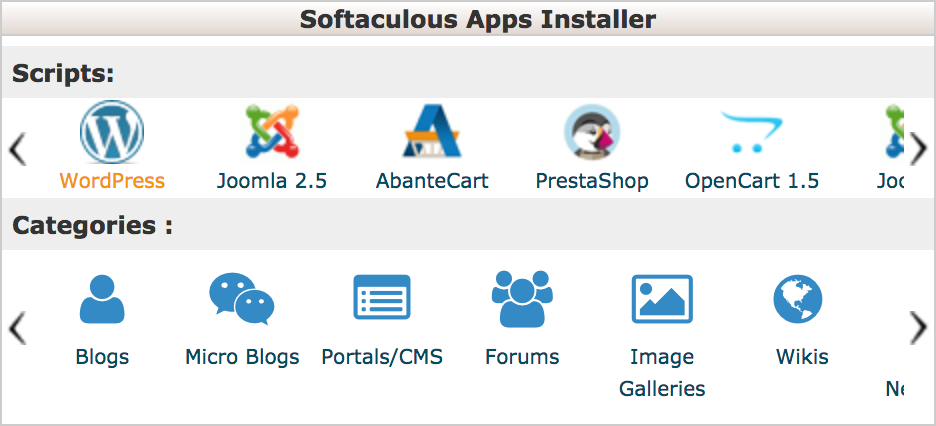
- Log into your cPanel.
- Select the Softaculous Apps Installer icon. Namecheap users can follow this guide to installing Softaculous.
- Click the WordPress logo.
- Click the Install tab to proceed and then click the install WordPress button.
On this page, you need to fill out the details of your WordPress installation.
- Choose the domain - enter the domain you wish to install WordPress on.
- Specify the root folder for installation. The Directory field is empty by default, leaving this way WordPress assumes you’re using WordPress on your website, for instance, yourdomain.com. You may install it to a subfolder if just your blog will be powered by WordPress for example, yourdomain.com/blog, type “blog” in this field.
- Database Name can be left as the default.
- The default wp_; Table Prefix can remain, but for increased security, we recommend changing it to something unique, like wpwebsitename_.
- Fill the Site Settings (you can change these at any time as needed).
- Hit Install when you’re ready.
This is where Softaculous now takes over. It will run the installer with the settings you provided and deliver a success message on completion, along with a link to your site and another link to your WordPress admin area. Click the latter link and login to your dash to start work on your website.
Installing WordPress manually
It’s possible to install WordPress manually. Even though this method includes a few more steps to build a website, some users prefer it. By manually installing WordPress you have the choice to create a website or use the software to handle your development in a safe place since it’s installed locally. To install WordPress manually, you need to download and upload the WordPress files, create a database and install WordPress. Let’s get started:
1. Download WordPress
Visit the WordPress website at WordPress.org and download the latest version. Save the zip file to a memorable location; such as your desktop as it will be no trouble to find there. Once WordPress has downloaded the zip file on to your computer, it's time to upload the files to your hosting account.
2. Upload WordPress to your hosting account
There are two ways to upload the files for Hosting for WordPress; You can use an FTP client like FileZilla, alternatively, use the File Manager in the cPanel of your hosting account. They both work the same way to upload your .ZIP file and there is little difference between them. One is a web application (cPanel), and one is a desktop application (FileZilla). CPanel doesn't require installation software to use it (it’s browser-based). There is a case for using FileZilla; it provides a solid environment for developers and facilitates local backups of your site.
Using FTP
This method uses your hosting account’s file transfer protocol (FTP) account information to upload files from your computer to your website. This overall process for setting up WordPress is a bit more time-consuming than with cPanel's File Manager. For programming development, FTP is a useful tool if you want to get stuck into developing a website if you're willing to put in a bit of extra work.
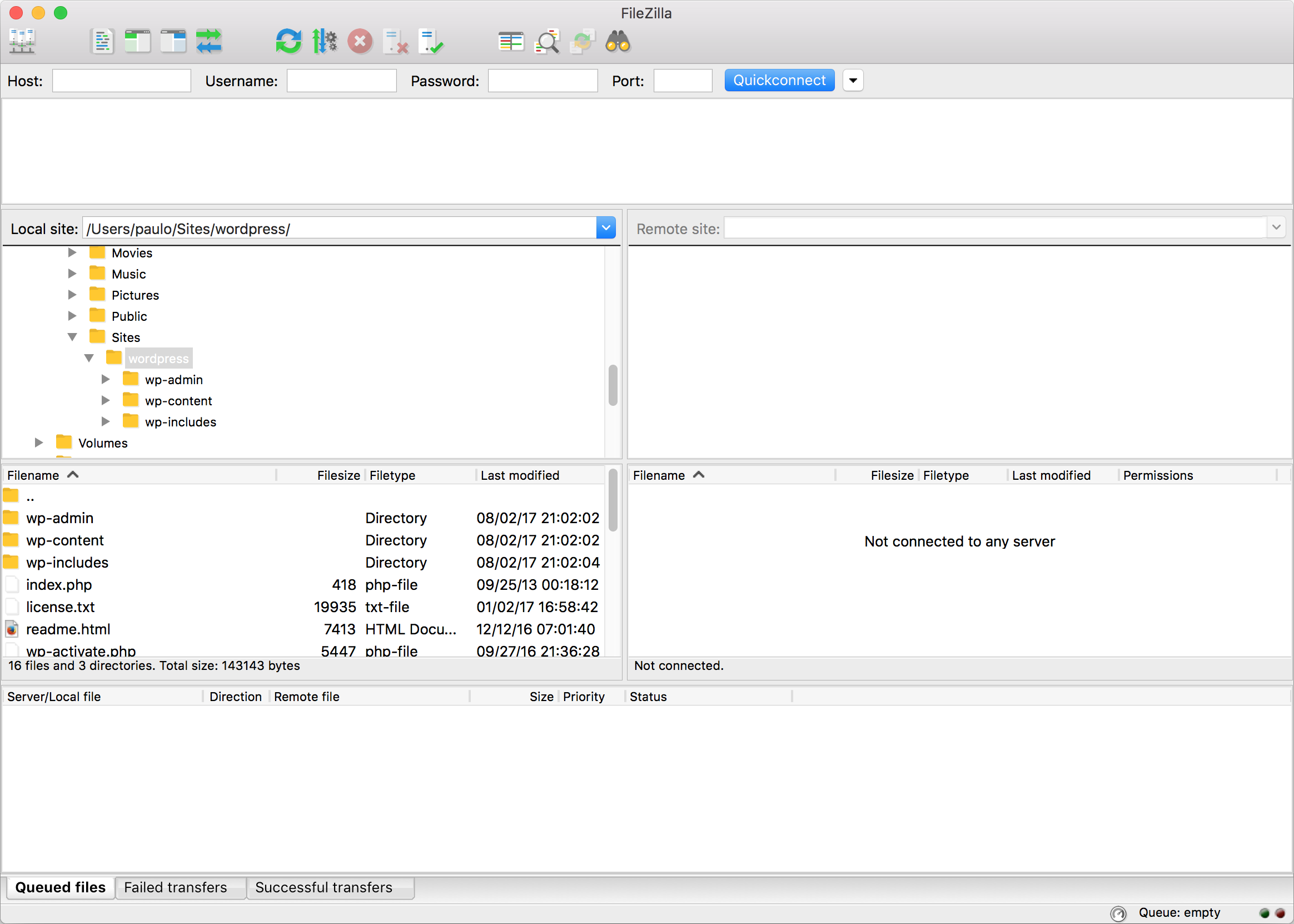
To create a copy of your site, you’ll need an FTP such as FileZilla. This example uses FileZilla, but you can use any other FTP program to upload the files. Follow these steps to install WordPress with FTP:
- Unpack (unzip) the zip file onto your computer
- Upload (extract) the files to the right directory in your hosting account
Upload WordPress and install
Once the desired programs are set up, you're ready to install. It’s now time to fire up your hosting account and get started, and you should do it in a way that works for you. There are two ways to install WordPress on your hosting server, manually or with the most straightforward way using platforms like Softaculous. There are two ways to install WordPress on your hosting server, manually or with the easiest way using platforms like Softaculous. Manual installation takes a little longer and is a bit more technical, so If you’ve got a host with a quick install option, we recommend taking advantage of it. Installing to a computer involves a different process which we’ll also cover. Scroll through the following sections to view instructions for specific software.
Using cPanel
The alternative method is to upload files straight into CPanel, the web-based hosting control panel provided by many hosting providers to website owners. It allows you to manage your website(s) from a web-based interface which includes an auto installer or package dedicated to content management systems like WordPress. This method is more streamlined than using an FTP since it's accessible from virtually any browser and requires no software downloads.
Skip this section if you have a host offering an easy WordPress installation wizard. If your web host does not have cPanel or for any other reason, you’ll need to install WordPress manually without an automated script installer such as Softaculous.
To continue, you need to make sure your site is connected to WordPress via your host. In your host account, locate Site Builder Options and select Use WordPress to connect your new domain to your WordPress website. Now follow these steps to manually install WordPress:
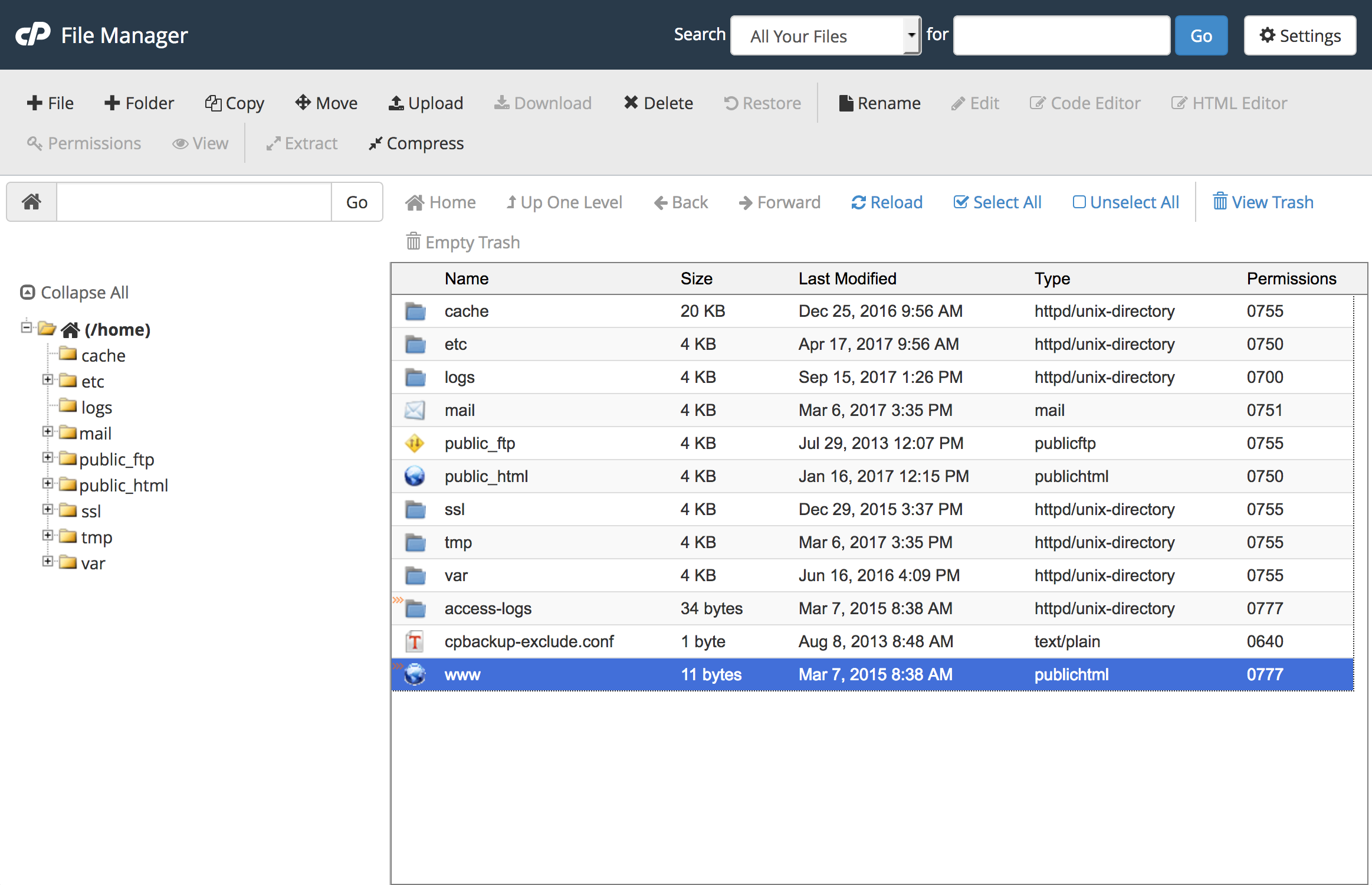
- Login to your cPanel and open the file manager in the files section, to find the directory you want to use, click public_html.
- Select the directory you want and click Upload in the toolbar.
- Click Select File to upload the WordPress .ZIP file you downloaded and click the Go Back link at the bottom of the screen when the upload is complete.
- To extract the files to the right place, click the WordPress file and hit the Extractbutton in the toolbar. At this point, a window will pop up asking where to extract the files to. You can leave this as the default directory currently in place. Click Extract File(s) to unpack everything inside the zip folder.
- Now the files are extracted you'll see a WordPress folder in the directory. The contents of this folder need to move to complete the installation. Click on the WordPress folder to show its files, select all to highlight all the files and hit the MoveFile button to move them to the main root of the domain name. To do this remove the WordPress section of the file path from /public_html/wordpress to /public_html/ and click Move File(s) once you're ready.
3. Setting up your MySQL database and users
Before the installation begins, you need to create a new database in your host account. You need to do this so that WordPress can save the data necessary for your website to work properly.
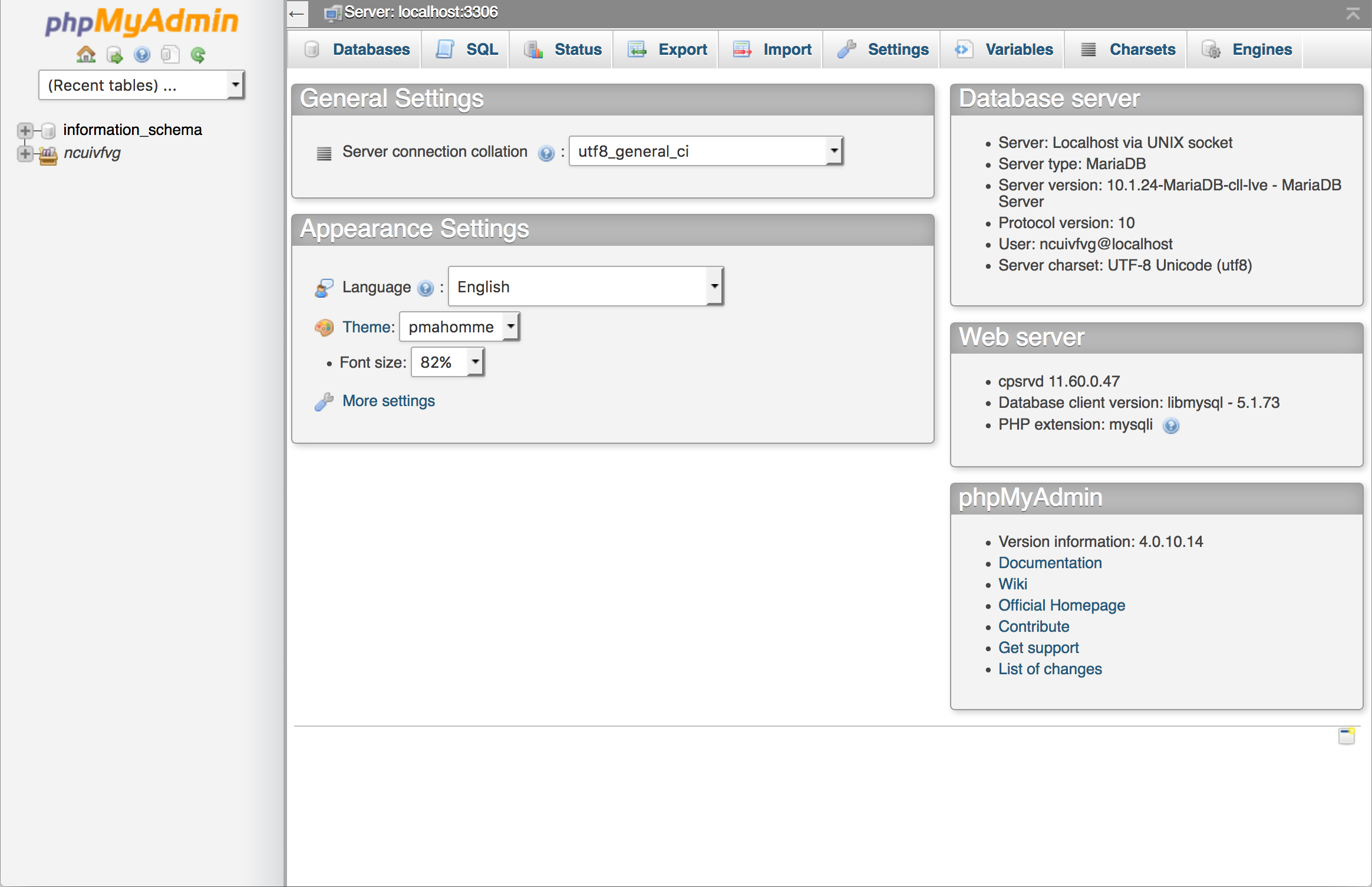
- From your cPanel scroll down to Databases and click the MySQL Databases icon. Give your new database a name, keep it simple and something easy to identify for example WPmydomainname and click Next Step.
- Now to assign a username and password, to be on the safe side don’t use the default 'admin' username and make use of the Password Generator tool. At this point, we advise you to note down your Database name, Username, and Password (we need these later) and click Create User.
- You now need to add permissions so that the username can talk to the database. To assign privileges to your new account select the All Privileges checkbox and hit the Next Step button at the bottom of this screen to confirm. From there you’ll see a ‘You’ve successfully granted privileges to the database’ message. You’ve now set up the database part of WordPress in cPanel ready for WordPress to use it.
4. Setting up the configuration file
The wp-config.php file is a crucial configuration file that contains your WordPress installation’s database settings. To set up the configuration file:
- Rename the sample file – Locate the wp-config-sample.php file in your WordPress folder and rename it to wp-config.php. This file will store your database connection details.
- Open the file – Open the wp-config.php file in a text editor. This can be any text editor like Notepad or a code editor like Visual Studio Code.
- Enter database information – Enter your database information, including the database name, username, password, and host. These details should match the MySQL database and user you created earlier.
- Enter secret keys – Enter your secret keys, including the AUTH_KEY, SECURE_AUTH_KEY, LOGGED_IN_KEY, NONCE_KEY, and AUTH_SALT. You can generate these keys using the WordPress secret key generator.
- Save the file – Save the wp-config.php file and upload it to your web server. This file is essential for connecting your WordPress installation to your database.
By correctly setting up the wp-config.php file, you ensure that your WordPress site can communicate with your database, which is vital for its operation.
5. Install WordPress
Now to complete the installation process, you need to setup your website or blog. Follow these steps:
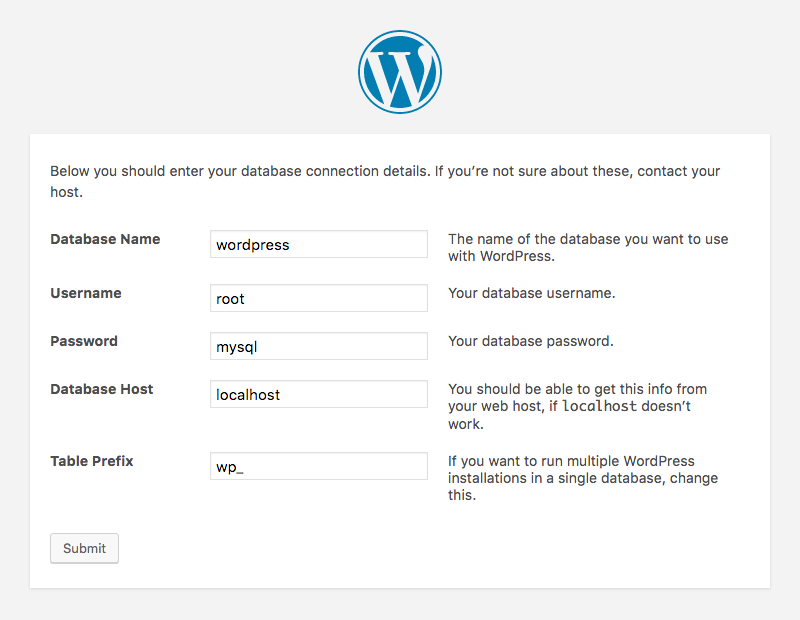
- Head to the domain of the website you set up this WordPress installation. If your WordPress files are in the root directory, go to http://exampledomain.com/wp-admin/install.php. If you put the files in a subdirectory called myblog, for example, then head to http://exampledomain.com/myblog/wp-admin/install.php.
- Choose your primary language and hit the Continue button. You'll now see a message from WordPress which tells you the information you need to know before installing (the same info you noted down in step 2 of setting up your database). Click Let's go! to get started.
- To connect your database to WordPress, you need to enter the name of your database, and the username and password you noted down earlier. You can leave the database name as the default localhost. If localhost doesn’t work you should be able to get this information from your web host. The Table Prefix can also be left untouched. Click Submit once you’ve entered the information needed.
- You’ve now reached the famous five-minute WordPress installation screen. Finalize the installation by entering some administration information. Type your website's title, your desired administrator username and choice of password, and email address into the respective fields. You’ll also notice a checkbox marked “discourage search engines from indexing this site.” This means whether you’d like to make your site visible to search engines like Google. Check this if you don’t want search engines to display your site in their search results. Once you've filled in your information, you’re ready to click Install WordPress.
Success! You’ve installed WordPress. That’s all you have to do, click the Log in button and enter the username and password you just set. Hit Log in once more to confirm. You’re now in your site’s WordPress dashboard.
Install WordPress on a subdomain
You may wish to use WordPress to power an isolated section of your site, adding a WordPress blog to your existing website for example. To set this up, you need to create a subdomain using cPanel. Log in to your cPanel and select Subdomains. In the Subdomain text box type the subdomain name you want and click Create to make it live.
Your subdomain is now ready. To start your blog or website, you may install WordPress manually or with Softaculous with your newly created subdomain.
Install WordPress locally to a computer
There are two ways to install WordPress locally on a computer. Follow these instructions for setting up a local server environment for testing and development. By installing this software locally, you can test it, become familiar with the software, use databases and make changes locally before bringing them online. Bear in mind that installing WordPress locally on your computer means your site will remain offline and the only person who will see it is you. For others to have access to your website, you’ll need web hosting to install WordPress using one of the methods shown above.
There are a few options to Install WordPress locally. First, you need to select an appropriate development environment. To install WordPress for Windows, use WAMP, and use MAMP if using a Mac.
You can bring your website online after installing WordPress locally. Simply transfer your files and database to a live web server at a later date once you’ve chosen a web host and hosting plan.
Troubleshooting common issues
If you encounter any issues during the installation process, here are some common solutions:
- Database connection issues – If you receive a “Error establishing a database connection” message, double-check your database connection settings in the wp-config.php file. Ensure that the database name, username, and password are correct, and that the database user has the necessary permissions.
- File upload issues – If you have trouble uploading WordPress files, ensure that you’re uploading them to the correct directory on your web server. Check your file permissions and make sure your FTP client or cPanel File Manager is configured correctly.
- PHP errors – If you encounter PHP errors, check your PHP error logs for more details. Ensure that your PHP version is compatible with WordPress. Most hosting providers support the required PHP versions, but it’s always good to verify.
- MySQL errors – If you run into MySQL errors, check your MySQL error logs. Ensure that your MySQL version is compatible with WordPress and that your database is set up correctly.
By addressing these common issues, you can troubleshoot and resolve problems that may arise during the WordPress installation process.
What now? - After installation
Our tutorial gave you the tools to install WordPress. It's now time to check out ways to manage and grow your new WordPress site. With WordPress, you’ve got lots of flexibility when it comes to customization. Start learning WordPress and ramping up your website with access to thousands of themes, plugins, and features to help you design the perfect site for your needs. Before long, you’ll have created a unique website single-handedly without learning a single line of code.
Launching your WordPress website
Once you’ve installed WordPress, it’s time to launch your website:
- Access the WordPress dashboard – Access the WordPress dashboard by visiting your website’s URL and logging in with your username and password. This is where you’ll manage all aspects of your WordPress site.
- Configure your website – Configure your website’s settings, including the site title, tagline, and timezone. These settings can be found under the “Settings” menu in the WordPress dashboard.
- Install themes and plugins – Install themes and plugins to customize your website’s design and functionality. You can find thousands of free and premium themes and plugins in the WordPress repository.
- Create content – Create content, including posts, pages, and categories, to populate your website. This is the core of your website and what your visitors will see.
- Launch your website – Once you’re satisfied with your website’s setup, launch it and make it available to the public. You can do this by simply not checking the “Discourage search engines from indexing this site” option in the settings.
By following these steps, you can successfully install and launch your WordPress website, making it available to the world.
You may also like

Hosting for WordPress
Start for free today*
Simplicity is freedom! Using EasyWP to set up and manage your site lets you get back to the rest of your business.
*30 days of Free trial. Renews automatically until canceled.
Get Hosting for WordPressHow to use WordPress
This plain English guide to WordPress shows how easy it can be to create and manage a website.
What are WordPress plugins?
Learn how these extensions can make a truly custom WordPress installation easy.
WordPress site security
WordPress's popularity makes it a target for hackers. We'll help you defend your website from them.
Wordpress user account guide
Master your user accounts in minutes with this in-depth look at how they work.
SEO for WordPress
Drive traffic from the search engines with the power of search engine optimization and WordPress.
WordPress CMS comparison
Check out the advantages that WordPress offers over its competition in the CMS category.
Using WordPress themes
An in-depth look at what WordPress themes are and how they work.
How to install WordPress themes
Our experts review how to install a WordPress theme from the official directory as well as from third-parties.
Speed up your WordPress site
Speed matters in the competitive online world. Learn how to optimize your WordPress site.